
Dedupe Google Drive with RClone
An issue with duplicates
I migrated from Amazon Cloud Drive to a paid Google Drive account. To facilate this move, I used a paid service called MultCloud. For me, Comcast prevents unlimited data, so it would have been challenging to manage 1.5TB of video and photography files movement by downloading then reuploading to Google Drive.
I ran into issues due to hitting rate limiting with Multcloud. As a result, I had to work through their awkard user interface to relaunch those jobs, which still had failures. I basically was left at the point of not really trusting all my files had successfully transferred.
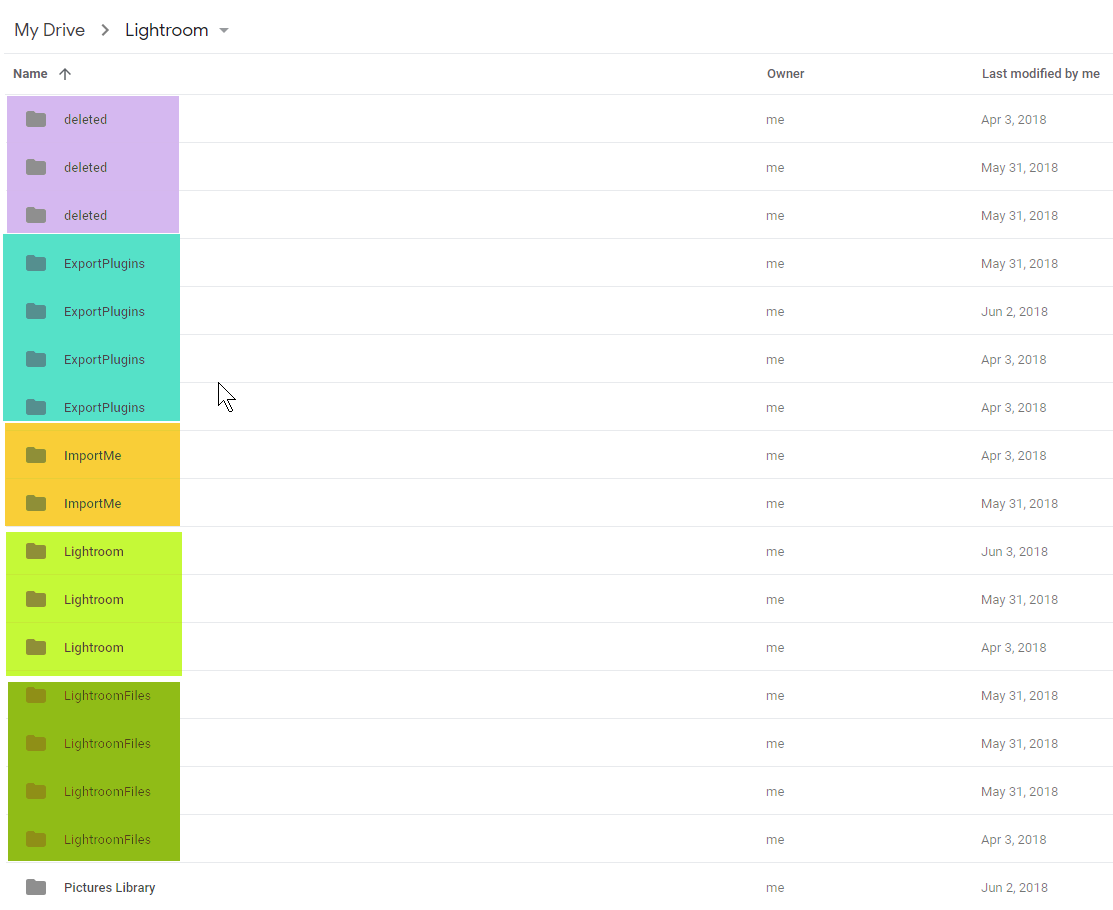
What’s worse is that I found that the programmatic access by MultCloud seemed to be creating duplicates in the drive. Apparently Google Drive will allow you have to files side by side with the same name, as it doesn’t operate like Windows in this manner, instead each file is considered unique. Same with folders.
RClone
I ran across RClone a while ago, and had passed over it only to arrive back at the documentation regarding Google Drive realizing they have specific functionality for this: dedupe. After working through some initial issues, my situation seems to have improved, and once again Google Drive is usable. In fact, it’s time for some house cleaning.
Successfully Running
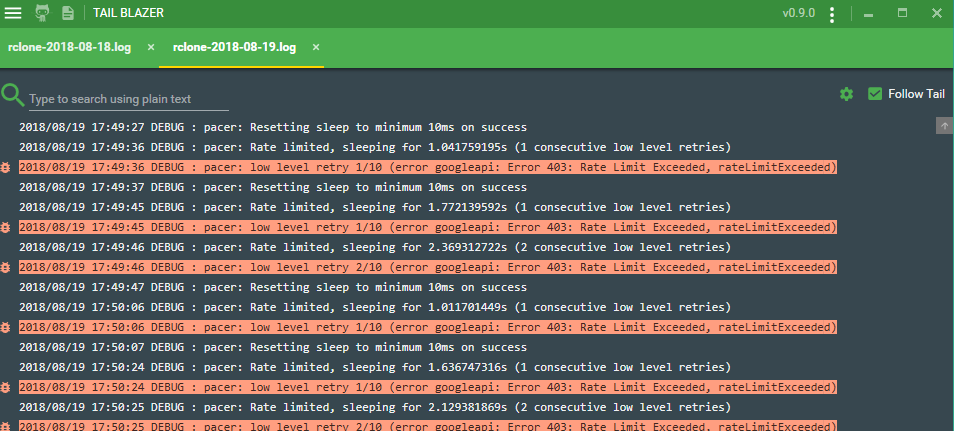
I suggest you make sure to find the developer api section and create an api access key. If you don’t do this and just use Oauth2, you are going to get the dreaded message: Error 403: Rate Limit Exceeded and likely end up spending 30+ mins trying to track down what to do about this.
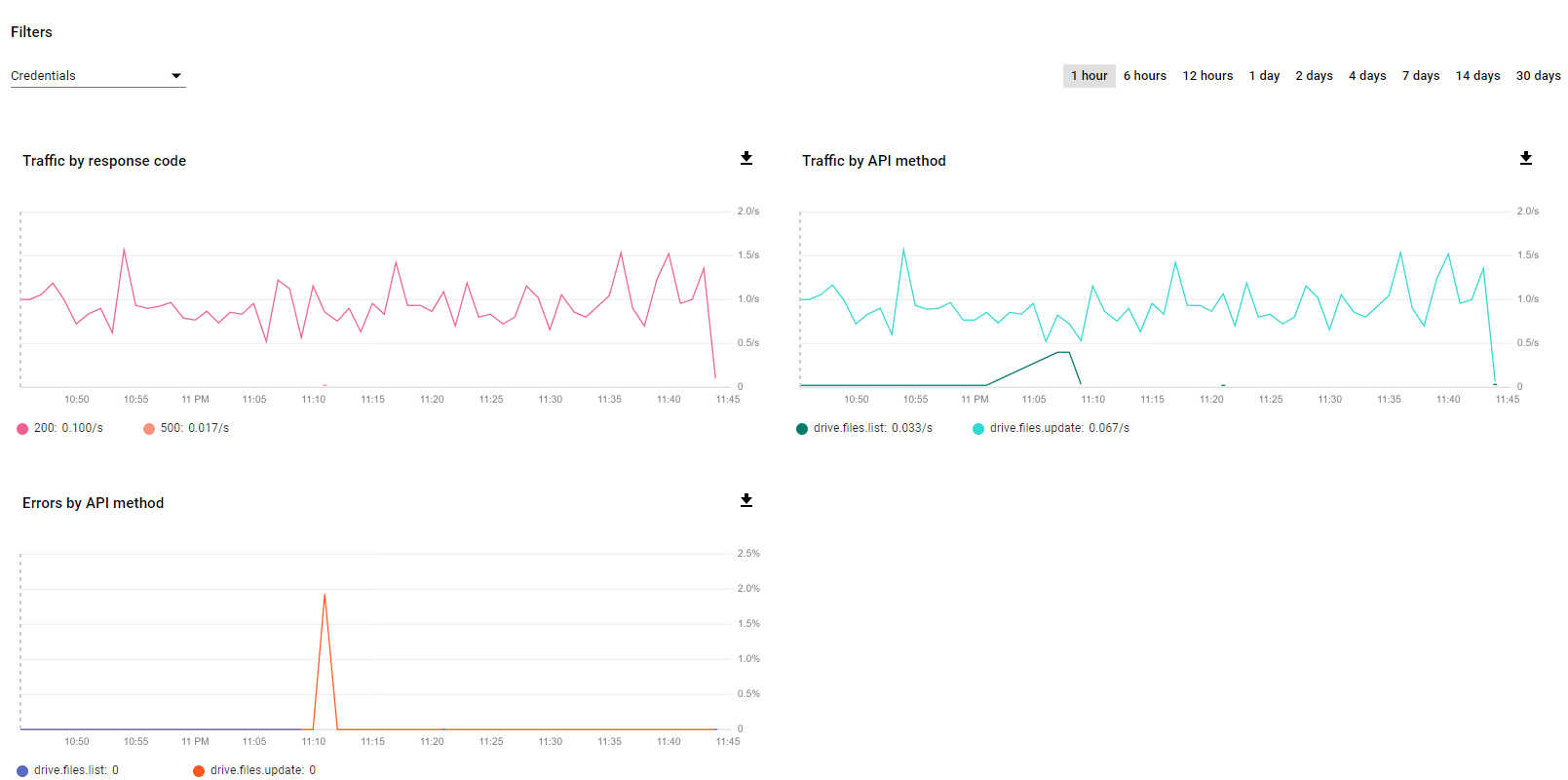
You’ll see activity start to show up in the developer console and see how you are doing against your rate limits.
Start Simple and Work Up From There
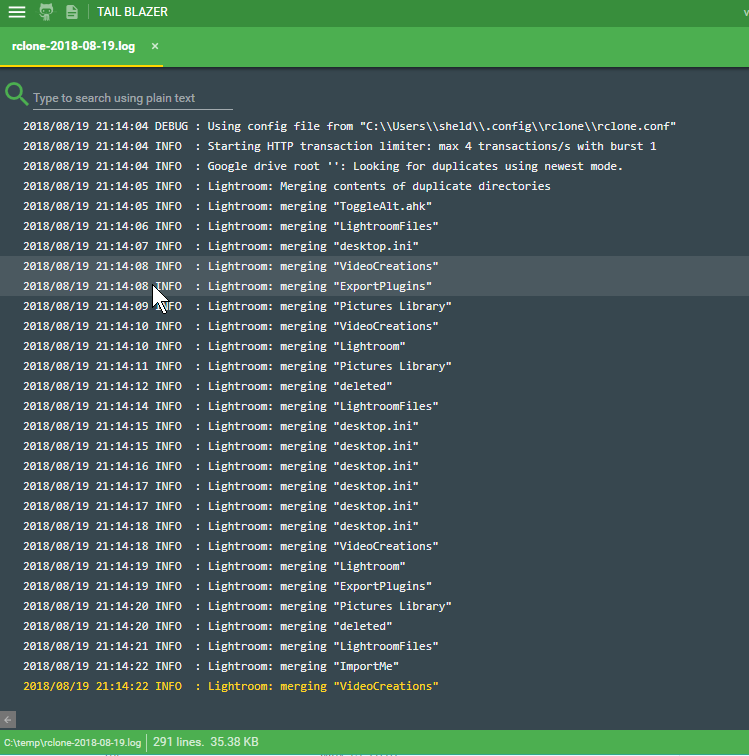
To avoid big mistakes, and confirm the behavior is doing what you expect, start small. In my script at the bottom, I walked through what I did.
Other Cool Uses for RClone
Merging
While I think the dedupe command in RClone is specific to Google Drive, you can leverage it’s logic for merging folders in other systems, as well as issue remote commands that are server side and don’t require download locally before proceeding.
Server Side Operations
This means, basically I could have saved the money over MultCloud, and instead used Rclone to achieve a copy from Amazon Cloud Drive to Google Drive, all remotely with server side execution, and no local downloads to achieve this. This has some great applications for data migration.
For an update list of what support they have for server side operations, take a look at this page: Server Side Operations
AWS
This includes quite a few nifty S3 operations. Even though I’m more experienced with the AWSPowershell functionality, this might offer some great alternatives to syncing to an s3 bucket
Mounting Remote Storage As Local
Buried in there was also mention of the ability to mount any of the storage systems as local drives in Windows. See RClount Mount documentation.. This means you could mount an S3 bucket as a local drive with RClone. I’ll try and post an update on that after I try it out. It’s pretty promising.
<#
RCLONE HELP
    https://rclone.org/commands/rclone_dedupe/

Useful options I choose
    --max-depth int
    --dry-run
    --log-file=PATH
    --tpslimit 1 # can help prevent rate limiting errors you might see if you run verbose x2, ie `-vv`
    --checkers 1
#>

# Install Rclone and a log viewer to make it nice to review results
choco upgrade rclone -y
choco upgrade tailblazer -y # nice tail log view for streaming rclone activity

# Alias for usage
new-alias rclone -value "C:\Program Files\rclone\rclone-v1.42-windows-amd64\rclone.exe" -force

# logging to this directory
New-Item 'C:\temp' -ItemType Directory -force
$LogFile = "C:\temp\rclone-$(Get-Date -format 'yyyy-MM-dd').log"


# Tested Against Folder With Dups With Dry Run
rclone dedupe newest googleappsdrive:Test --log-file=$LogFile --dry-run

# Ran against folder and it removed 3 of the 4, leaving only one file, now deduplicated
rclone dedupe newest googleappsdrive:Test --log-file=$LogFile

# another folder with dups but larger. This ran into issues when I didn't limit depth
rclone dedupe newest --dry-run googleappsdrive:"Amazon Drive\Development" --log-file=$LogFile --max-depth 2

# merge the root folder level only of duplicate folders
rclone dedupe newest googleappsdrive:"" --drive-skip-gdocs --log-file=$LogFile -vv --tpslimit 4 --transfers 1 --fast-list --max-depth 1 --stats=30s

# now dig into my Lightroom Library and deduplicate a bit more. I did this to confirm it was working before I did everything in my folders.
rclone dedupe newest googleappsdrive:"Lightroom" --drive-skip-gdocs --log-file=$LogFile -vv --tpslimit 4 --transfers 1 --fast-list --max-depth 1 --stats=30s
rclone dedupe newest googleappsdrive:"Lightroom" --drive-skip-gdocs --log-file=$LogFile -vv --tpslimit 4 --transfers 1 --fast-list --max-depth 2 --stats=30s
rclone dedupe newest googleappsdrive:"Lightroom" --drive-skip-gdocs --log-file=$LogFile -vv --tpslimit 4 --transfers 1 --fast-list --max-depth 3 --stats=30s

# now that I've got everything figured out, I ran against the entire drive.
rclone dedupe newest googleappsdrive:"" --drive-skip-gdocs --log-file=$LogFile -vv --tpslimit 4 --transfers 1 --fast-list --stats=30s